Jun 22, 2026 · 6 min read
Is Mailgun Tracking Your Email? How to Block It
Mailgun, the transactional email API used by thousands of developer teams, automatically embeds a 1×1 invisible tracking pixel in every HTML email it sends — logging when you open the message, your IP address, device type, and email client. Here is what Mailgun collects and how to stop it in Gmail.
Most email tracking conversations focus on marketing platforms. But the invoice confirmation you received from a SaaS tool, the password reset email from a startup, or the shipping notification from an online store — these transactional emails are often sent through developer email APIs like Mailgun. And Mailgun, by default, embeds the same invisible tracking pixel into every HTML email it delivers. The moment you open that receipt or notification, Mailgun logs your IP address, device type, operating system, email client, and a precise timestamp — all reported back to the sending developer's Mailgun dashboard, where it is aggregated alongside every other open event across their entire user base.
Key Takeaways
- Mailgun is a transactional email API owned by Sinch, used by developers to send automated emails — receipts, notifications, password resets, alerts — at scale.
- Open tracking is enabled by default for Mailgun domains and works via a transparent 1×1 PNG pixel placed at the bottom of every HTML email.
- The tracking pixel fires a request to Mailgun's servers via a CNAME record pointing to
mailgun.org, logging your IP address, device, email client, and open timestamp. - Click tracking rewrites every link in a Mailgun email through a redirect hosted on the sender's tracking subdomain, capturing each click event before delivering you to the destination.
- Gblock blocks Mailgun tracking pixels and click redirects in Gmail before any data leaves your browser.
What Is Mailgun?
Mailgun is a developer focused email API and SMTP relay service owned by Sinch, the communications platform company. Unlike marketing tools such as Mailchimp or HubSpot, Mailgun is not a drag-and-drop email builder for marketers. It is infrastructure: an API that developers integrate directly into applications to send transactional email at scale. A startup might use Mailgun to send account confirmation emails. A SaaS company might use it to deliver weekly usage reports. A marketplace might route all order confirmations and shipping notifications through it.
Because Mailgun operates in the background of applications rather than as a named sender, most recipients never see the word "Mailgun" in an email they receive. The email appears to come from the company whose product they use. The tracking, however, is Mailgun's — routed through Mailgun's infrastructure and logged to the developer's Mailgun account.
How Does Mailgun Track Email Opens?
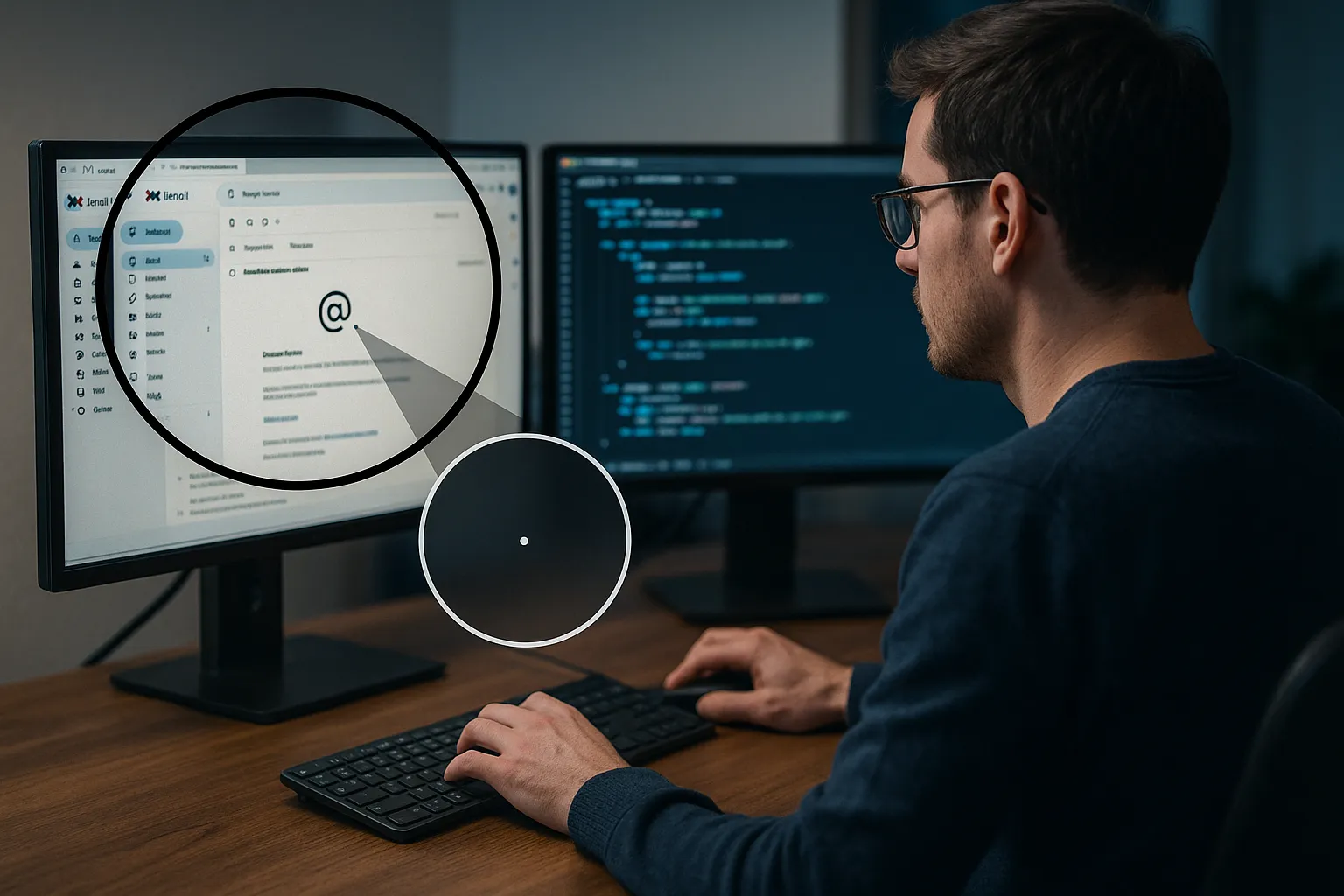
According to Mailgun's own documentation, open tracking works by embedding an invisible 1×1 pixel PNG image into every HTML email. When you open the email and your email client loads images, your client fetches the pixel from Mailgun's servers — and that fetch is recorded as an open event in the sender's Mailgun logs.
The infrastructure behind Mailgun open tracking relies on DNS CNAME records. Mailgun requires senders to configure a tracking subdomain in their DNS — typically something like email.sender.com or track.sender.com — pointing via CNAME to mailgun.org. When the tracking pixel fires, the request hits the sender's tracking subdomain and is routed transparently through to Mailgun's servers. This CNAME architecture is why Mailgun-tracked emails are harder to identify than Marketo or HubSpot emails: the pixel URL looks like it belongs to the company that sent the email, not to Mailgun.
Mailgun places the pixel at the bottom of emails by default, though this can be configured to appear at the top for very long emails that might be truncated by email clients before the pixel loads. Open tracking only works for HTML emails — plain text emails cannot carry the pixel and are not tracked for opens.
What Does Mailgun Collect When You Open an Email?
Each time the Mailgun tracking pixel fires, the following data is logged to the sender's Mailgun event log:
- Timestamp — exact date and time of the open
- IP address — used by Mailgun to infer geolocation including city and country
- Email client — Gmail, Outlook, Apple Mail, and others (detected from the HTTP user agent)
- Device type — desktop, mobile, or tablet
- Operating system — Windows, macOS, iOS, Android
- Country and region — inferred from the IP address at the time of open
For click tracking, Mailgun rewrites all links in the email to redirect through the sender's tracking subdomain before reaching the final destination. Each click logs which link was clicked, the timestamp, the device, and IP address. The sender can see, in their Mailgun dashboard, exactly which links any given recipient clicked and in what order — building a granular behavioral profile from what appeared to be a routine transactional email.
How to Identify a Mailgun Email in Gmail
Identifying Mailgun emails is harder than identifying emails from named marketing platforms because the tracking domains look like they belong to the sender. To check for Mailgun, view the raw email source in Gmail (three dot menu → "Show original") and look for these signals:
- Return-Path header containing a subdomain like
bounce.sender.comormg.sender.com— the bounce handling subdomain Mailgun requires is a strong indicator X-Mailgun-Sidheader — Mailgun injects this header into outbound messages; it is a reliable fingerprintX-Mailgun-TagorX-Mailgun-Variablesheaders — used for internal tagging and metadata- Links that route through a subdomain of the sender's domain (e.g.,
track.sender.com/c/...ENCODED...) before redirecting to the destination — these are Mailgun click tracking redirects - DKIM signatures from
mailgun.orgin the email authentication headers (look ford=mailgun.orgin the DKIM-Signature header)
The X-Mailgun-Sid header is the most reliable identifier. Even when a company uses a fully branded tracking domain and bounce subdomain, Mailgun still injects this header — and it will show up in the raw message source. For a broader guide to detecting tracking in any email, see our how to tell if your email is being tracked guide.
Is Mailgun Tracking Legal Under GDPR?
The legal question is not whether Mailgun's tracking infrastructure is GDPR compliant — Sinch is the data processor and Mailgun operates under a data processing agreement with its customers. The question is whether the sender — the developer or company that integrated Mailgun — has a lawful basis for the personal data (IP address, device data) the tracking pixel collects from their EU users.
Transactional email presents a particularly murky case. A password reset email has a clear legitimate interest basis for sending. But does the open tracking pixel embedded in that same email also have a legitimate interest basis for collecting geolocation data and behavioral timing? Italy's Garante said no, at least for marketing emails — its April 2026 Provision No. 284 explicitly requires prior consent for email open tracking pixels. Whether the same requirement extends to transactional email is a live legal question in Europe, but the prudent compliance position is to treat any behavioral data collected via a pixel as requiring a lawful basis regardless of the email category.
Mailgun provides the ability for senders to disable tracking at the domain or message level. Developers who care about their users' privacy can turn tracking off. Most, however, leave it at the default: on.
Why This Matters Beyond Marketing Email
The tracking pixel problem is usually discussed in the context of marketing newsletters and cold sales outreach. Mailgun illustrates a different dimension: transactional email tracking. When you open a receipt, a two factor authentication notification, or a subscription renewal reminder, you likely assume you are reading information about a transaction you initiated. The idea that this routine open is being logged against your IP address and fed into a developer's analytics dashboard rarely occurs to recipients.
For users who are privacy conscious, the distinction between "marketing email I can opt out of" and "transactional email I have no choice about receiving" matters. You cannot opt out of a password reset email. You cannot ask a company to not send you receipts. But every time you open one, if the company uses Mailgun with tracking enabled, you are contributing behavioral data you never agreed to share. For a technical deep dive into how all forms of email tracking work beyond simple pixels, see email tracking has outgrown the pixel.
How to Block Mailgun Email Tracking
Three approaches, ordered by effectiveness:
1. Use Gblock (most effective)
Get Gblock for Gmail — a Chrome extension that blocks email tracking pixels and flags click tracking redirects inside Gmail. Because Mailgun tracking uses branded CNAMEs (so the pixel URL looks like the sender's domain, not Mailgun's), Gblock uses behavioral heuristics and pattern detection to identify Mailgun tracking redirects even when standard Mailgun domain fingerprints are masked. It blocks the pixel request before it fires, so no open event reaches Mailgun's servers. For click tracking, Gblock flags links routed through tracking redirects so you can see before clicking that your action will be logged.
2. Disable image auto-loading in Gmail (partial)
In Gmail Settings → General → Images, select "Ask before displaying external images." Mailgun's pixel only fires when images load — blocking automatic image loading prevents the open pixel from reporting. This does not, however, block click tracking: following any link in a Mailgun email still routes through Mailgun's tracking server before delivering you to the destination.
3. Ask the sender to disable tracking (requires access)
Mailgun allows senders to disable open and click tracking at the domain level or per message (using the o:tracking API parameter set to no). If you are a developer using Mailgun for your own product, you can opt your users out of tracking in the API call. If you are a recipient and the sender is a company you have a relationship with, you can ask them to disable tracking — though this requires them to care about the request and have the technical ability to implement it.
| Method | Blocks open tracking? | Blocks click tracking? | Gmail experience intact? |
|---|---|---|---|
| Gblock | Yes | Yes (flags links) | Yes |
| Images off in Gmail | Mostly | No | No (broken images) |
| Ask sender to disable | Depends | Depends | Yes |
For a full comparison of Gmail tracking blockers, see how to block email tracking in Gmail.
Transactional Email Tracking Is Still Email Tracking
Mailgun also sits underneath products you would not think of as email platforms at all. Ghost, the open source publishing tool, sends every newsletter through it, which is why a Ghost newsletter tracks your opens and rewrites its links even though nothing in the message mentions Mailgun.
HighLevel's LC Email service is another example: all seven shared sending domains HighLevel lists for it publish Mailgun mail servers, which is why GoHighLevel email tracking often reaches you from a local business that never mentions either company.
The email tracking debate tends to focus on newsletters and cold outreach, where the commercial intent is obvious. Mailgun's role in the email ecosystem shows why that framing is incomplete. Every HTML email you open — regardless of whether it is promotional, transactional, or administrative — potentially carries a tracking pixel if the sender uses an email delivery service with tracking enabled. The pixel does not know or care what type of email it is in. It just fires.
Gblock handles all of these cases in Gmail. It does not distinguish between marketing and transactional email — it blocks tracking pixels across all email types, so the receipts, notifications, and alerts you receive are as private as the newsletters you never signed up for.
Sources: Mailgun: Tracking Opens Documentation | Mailgun: Tracking Pixel Glossary | Mailgun: Domain Tracking API Reference.