Jun 09, 2026 · 5 min read
How to Stop Spam Emails in Gmail (2026 Guide)
Reporting, blocking, unsubscribing, and filtering are not interchangeable. Here is which one to use, when, and why some of the "obvious" moves actually invite more spam.
If you want to stop spam emails in Gmail, the first thing to understand is that spam is not just an annoyance. Every time you reply, load an image, or click a link in a junk message, you confirm to the sender that your address is real, monitored, and worth selling. That single confirmation is how one spam email becomes ten. The good news: Gmail filters more than 99.9% of spam automatically, and a handful of deliberate moves on your end shut down most of what slips through.
Key Takeaways
- Gmail blocks over 99.9% of spam, phishing, and malware before it reaches your inbox.
- Reporting spam trains Gmail's filter; blocking redirects one sender to Spam; unsubscribing only works on legitimate brands.
- As of 2026, Google requires bulk senders to keep spam complaints under 0.3% and offer one click unsubscribe.
- Never unsubscribe from or reply to obvious junk—it confirms your address is active and invites more.
- Aliases and an auto updating tracker blocker stop spammers from learning your address is live in the first place.
Report or Block or Unsubscribe: Which One?
These three buttons look similar but do completely different things, and using the wrong one wastes your time or makes the problem worse.
- Report spam teaches Gmail's machine learning filter to recognize similar messages for you and everyone else. Use it for deceptive, suspicious, or malicious mail.
- Block sender sends every future message from that one address straight to Spam. Use it when a real sender simply will not stop.
- Unsubscribe asks a legitimate brand to remove you from its list. Use it only for mail you recognize from a company you actually dealt with.
The rule of thumb: if the message is junk you never signed up for, report it. If it is a real newsletter you are tired of, unsubscribe. Do not unsubscribe from random spam you do not recognize.
How Do You Report and Block Spam in Gmail?
On the web, open the message (or just select it) and click the Report spam icon (the stop sign with an exclamation mark) in the toolbar. To block a specific sender, open the message, click the three dot menu in the top right, and choose Block "sender". On mobile, the same options live behind the three dot menu on any open email.
Reporting is the more powerful of the two because it feeds Gmail's filter signals such as IP reputation, domain authentication, and aggregated user feedback. Blocking is precise but narrow: a spammer who rotates through hundreds of throwaway addresses will simply send from a new one.
Why You Should Never Reply to Spam
The most common mistake people make is engaging with junk mail. Replying, clicking "unsubscribe" on a shady message, or loading its images all do the same thing: they tell the sender a human is on the other end. Many spam and marketing emails carry a hidden tracking pixel—a tiny invisible image that pings a server the instant the message is opened, revealing that your address is live and being read.
That signal is valuable. Confirmed "live" addresses are bundled and resold across spam networks, which is exactly why one careless interaction can multiply the junk you receive. If you are curious how this works, see our explainer on email open tracking vs click tracking.
Use Filters to Automate the Cleanup
Gmail's filters are the most underused tool for fighting recurring spam. Click the search box arrow (or "Show search options"), define a pattern—a sender, a subject phrase, or a keyword—then choose Create filter and tell Gmail to Delete it or Skip the Inbox and apply a label. From then on, anything matching that pattern is handled automatically.
Filters shine against the gray zone: technically legitimate mail you never want to see, like promotions from a store you bought from once. They give you per pattern control without nuking everything from a domain.
What Changed for Spammers in 2026?
Google now enforces stricter rules on bulk senders. Anyone sending large volumes of email must authenticate their domain, keep their spam complaint rate below 0.3%, and include a working one click unsubscribe link. In practice this means your "report spam" clicks carry real weight: enough complaints can throttle a sender's ability to reach inboxes at all.
It also means that for genuine, compliant senders, the one click unsubscribe link in the header is now safe and reliable—Gmail surfaces it as an "Unsubscribe" button near the sender name. Use that built in button rather than hunting for a link buried in the message body.
Stop Spammers From Knowing You Exist
The most durable fix is to stop confirming your address is active in the first place. Two habits help:
- Use aliases. Hand out a unique address (or a Gmail "plus" alias like you+shop@gmail.com) to each service. When spam arrives, you know exactly who leaked you, and you can filter or kill that alias.
- Block tracking pixels. A blocker that neutralizes spy pixels keeps marketers and spammers from learning when—or whether—you opened their mail, so your address never gets flagged as a high value, actively read target.
Gblock does the second part automatically inside Gmail: it intercepts tracking pixels before they report back, and it keeps an auto updating blocklist of email trackers so new tracking domains get caught as they appear. Less confirmation means less spam over time.
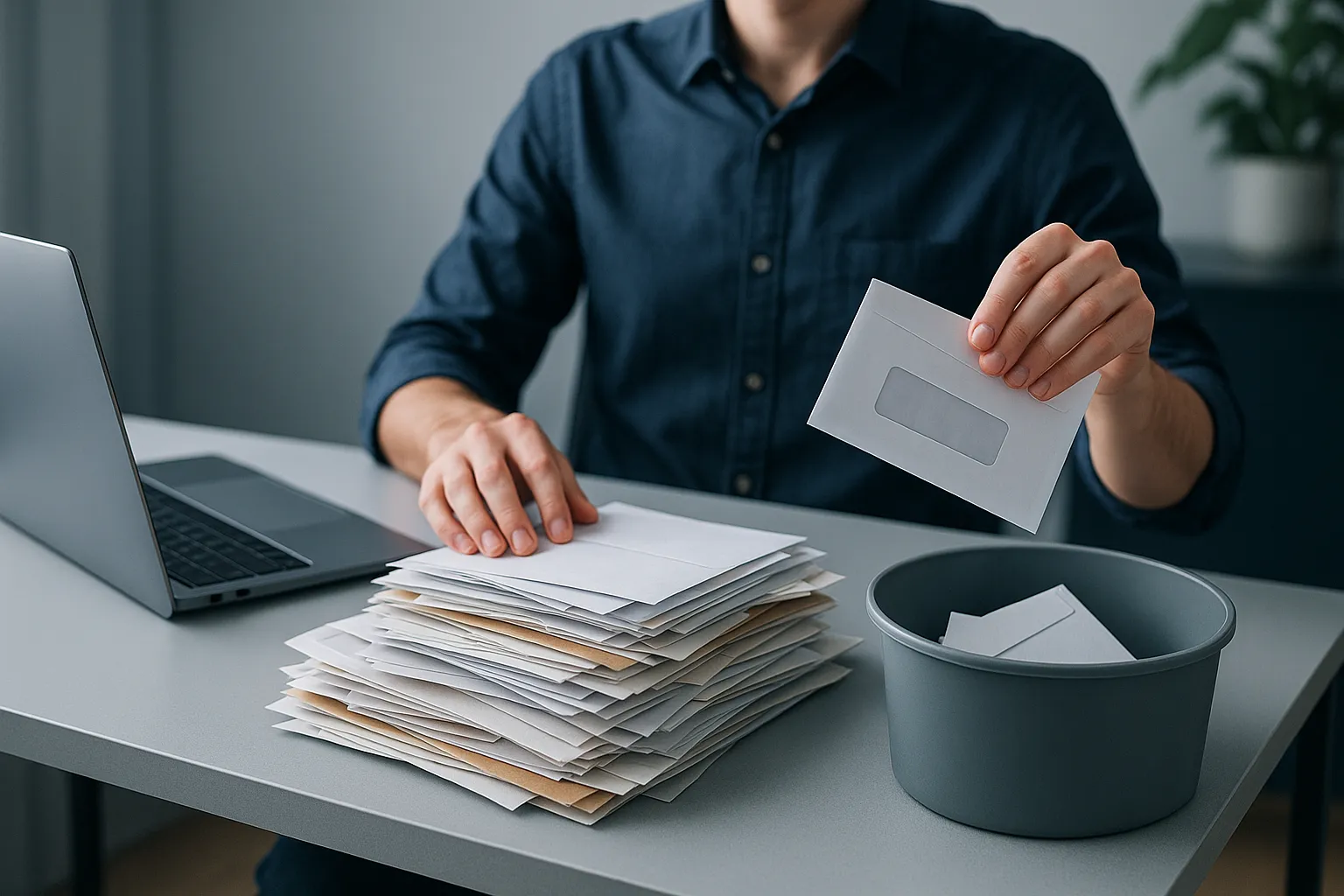
The 5 Minute Spam Cleanup Routine
- Report—do not delete—anything deceptive or unsolicited so Gmail learns the pattern.
- Use Gmail's built in Unsubscribe button only for real brands you recognize.
- Block individual senders who keep mailing you from a fixed address.
- Build one or two filters to auto archive recurring gray mail.
- Turn on a pixel blocker and start using aliases so your address stops getting flagged as "live."
Spam will never hit zero, but the inbox you control is the one where every junk message is a teaching signal, not an invitation for more.